
The ACS tool is very convenient and rich in features that go beyond simple 5250 emulation. In fact, this tool can be used to perform database management and maintenance operations, transfer IFS data or database files rather than spools. These are some of its functions…
As you can imagine, it is a real Swiss Army knife whose impact is sometimes underestimated. However, there are ways to limit the features available to users.
The AcsConfig.properties file, which is usually located in the root of the ACS installation, allows you to define two different approaches. The first is the historical approach defined with the com.ibm.iaccess.ExcludeComps directive, allows you to disable individual features, but this means that if IBM adds a new feature, you would have to rush to add it to the features to be excluded if you do not want it to be available. The other approach, which is more secure from this point of view, allows you to specify only which features are allowed and is managed by the com.ibm.iaccess.IncludeComps directive, which effectively excludes all features not explicitly included.

In this screenshot, you can see the documentation provided for these expressions. It is important to note that the two options cannot be combined, so you must either proceed with exclusion or inclusion.
Please note that the AcsConfig.properties file is a text file that contains the default settings as well as the features mentioned above. However, it is a file that can be “easily” modified by users, so if you are an administrator and want to secure it, you have two different options for doing so. The first mechanism involves modifying the file’s security attributes by setting it to read-only mode on Windows or 444 mode on Mac or Linux, so that users do not have permission to edit it. Another way is to insert the file into the acsbundle.jar file, which is the file that contains the ACS executable code. A jar file is a compressed archive, so you can use an application such as 7zip or other archive browsers and insert the file into that archive. That way, there will no longer be any text files that are easy for users to edit. However, you need to be careful with ACS updates, because in that case the acsbundle.jar file is overwritten with each update, so the configuration must be reinserted with each update.
Another thing to pay particular attention to is related to installation. If ACS is not installed correctly but only the jar file is executed, these limitations will not apply and there is no way for the IBM i system to block function usage or anything else.
But administrators, don’t worry, because there is an even better way to manage the permissions of this fantastic tool. By opening ACS in administrative mode on Windows or with root privileges on Mac or Linux, a screen like the one below will appear in the preferences, showing all the features provided by ACS. From here, you can define a list of features to exclude, as shown in the screenshot:
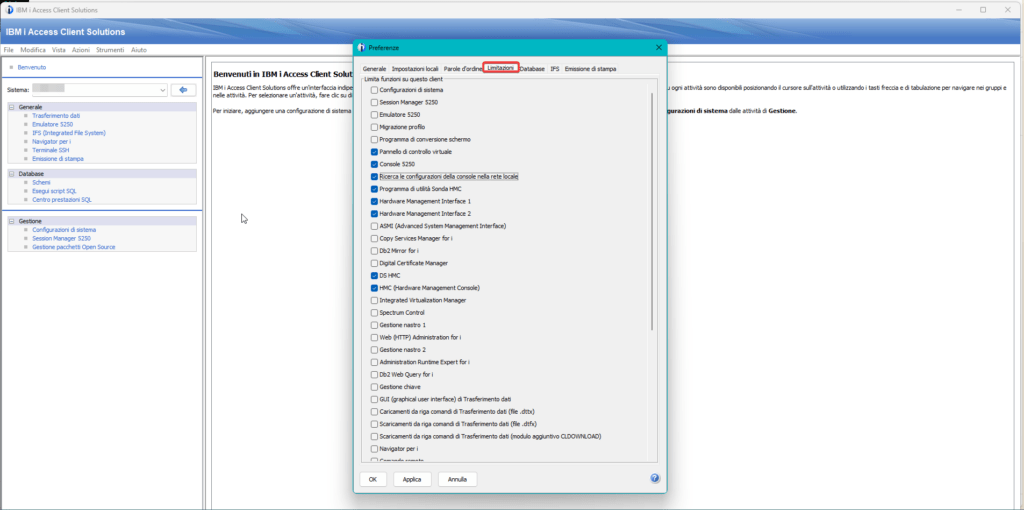
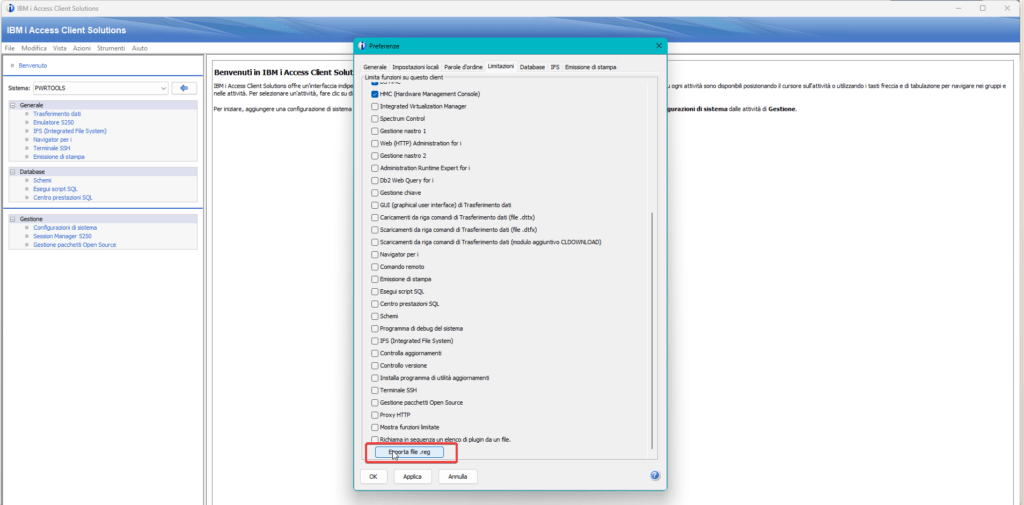
In my example, I disabled all HMC-related features on my client. Scrolling down, I see a button that allows me to export the script that lets me modify the system registry to make these changes, because in this case the changes are not defined at the ACS configuration level but at the Windows level. What you can guess is that by distributing this file, you can define policies on Active Directory that allow various user groups to access or not access certain functions of the Access client.
And you, have you ever thought about how to manage these ACS features centrally on your clients?
Andrea